How to setup task to synchronise Outlook among PCs?
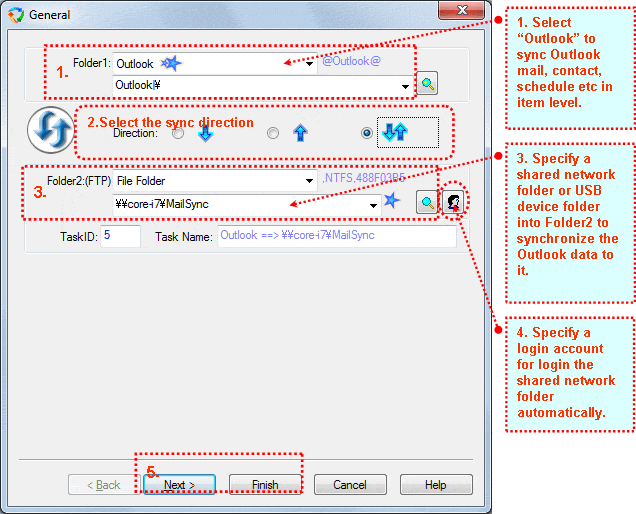
(1). Select "Outlook" in the "Folder1" combo box.
(2). "Outlook|\" is selected by default, this means that all the message stores
of the current user are to be synchronised. If you want to synchronise only the
default store or specified folder, such as inbox only, use button to browser
the folder.
button to browser
the folder.
(3). Select the synchronisation direction.
 : One-way synchronise from
Outlook to Folder2.
: One-way synchronise from
Outlook to Folder2.
 : One-way synchronise from Folder2 to Outlook.
 Two-way synchronisation.
(New emails in Outlook are copied to Folder2, and new emails in Folder2 are
copied to Outlook)
(4). Select any file system you can use in "Folder2 (FTP)" combo box.
If you want to use a shared network folder, select
"File Folder" in "Folder2" combo
box.
If you want to use a folder in USB disk, also select "File Folder" in "Folder2" combo
box.
If you want to use FTP folder, please refer to "
How
to synchronise with FTP".
If you want to use WebDAV collection, please refer to "
How to synchronise with WebDAV Collection".
If you want to use Amazon S3 Bucket, please refer to "
How to synchronise with Amazon S3 Bucket".
(5). Usebutton to browser
a target folder in the file system .
(7). Press "Next" to set other options, or press "Finish" to end the task wizard.
(8). Setup a same task in other PC that you want to synchronise the Outlook with.
(*) Before setup Outlook task, please ensure you have setup an email account in Outlook, and Outlook works fine.
(*) BestSync 32bit version can only synchronise with Outlook 32bit version. BestSync 64bit version can only synchronise with Outlook 2011 64bit version.

